Minecraft Server Guides
How to Play Multiplayer on CurseForge with Friends (2026 Guide)
Published 3 January 2026 · Updated 5 February 2026 · GigaNodes Team
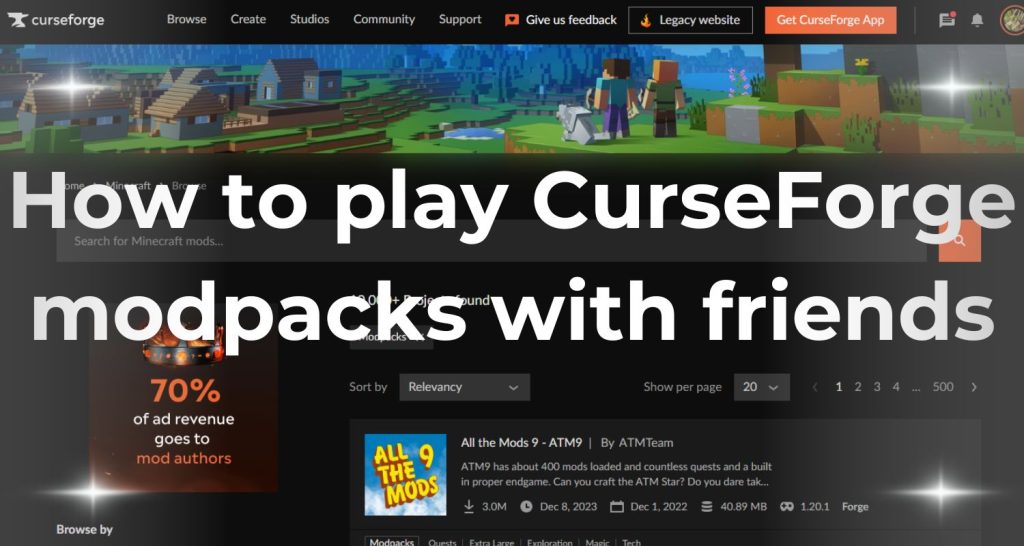
Learning how to play multiplayer on CurseForge can be confusing if you don’t know the difference between the ‘Essential Mod’ and a dedicated server.
First, to play multiplayer on CurseForge, download and install the CurseForge launcher. Choose the modpack you want to play and install it. Then, decide whether to host a server or use a Minecraft server hosting provider like GigaNodes.. If hosting on your own, download the server files for the modpack from CurseForge, set up a Minecraft server on your computer, and share the IP address with your friends. Ensure everyone has the same modpack installed.
Explore detailed steps and tips for setting up and managing a CurseForge modpack server, ensuring a smooth multiplayer experience with your friends.
What Are CurseForge Modpacks?
CurseForge is a popular platform that hosts many mods and modpacks for Minecraft. It is a hub where players can find, download, and manage mods to enhance their Minecraft experience. CurseForge provides modpacks bundled together to create a specific gameplay experience or theme.
Playing multiplayer on CurseForge offers several benefits. It can transform your gameplay with new features, mechanics, and content, adding a fresh twist to the classic game. Modpacks often include everything from new biomes and creatures to complex technology and magic systems. Sharing these experiences with friends enhances the fun and can lead to unique, collaborative adventures. For instance, modpacks like “SkyFactory” or “FTB Infinity” offer comprehensive, thematic changes that can make multiplayer sessions more engaging and enjoyable.
Setting Up a CurseForge Modpack Server
Setting up a CurseForge modpack server can be a straightforward process if you follow these steps:
1. Choose a Modpack
Start by selecting a modpack from CurseForge that matches the gameplay experience you’re aiming for. For example, if you’re interested in tech and automation, you might choose “FTB Infinity Evolved,” while “SkyFactory 4” is excellent for a skyblock challenge.
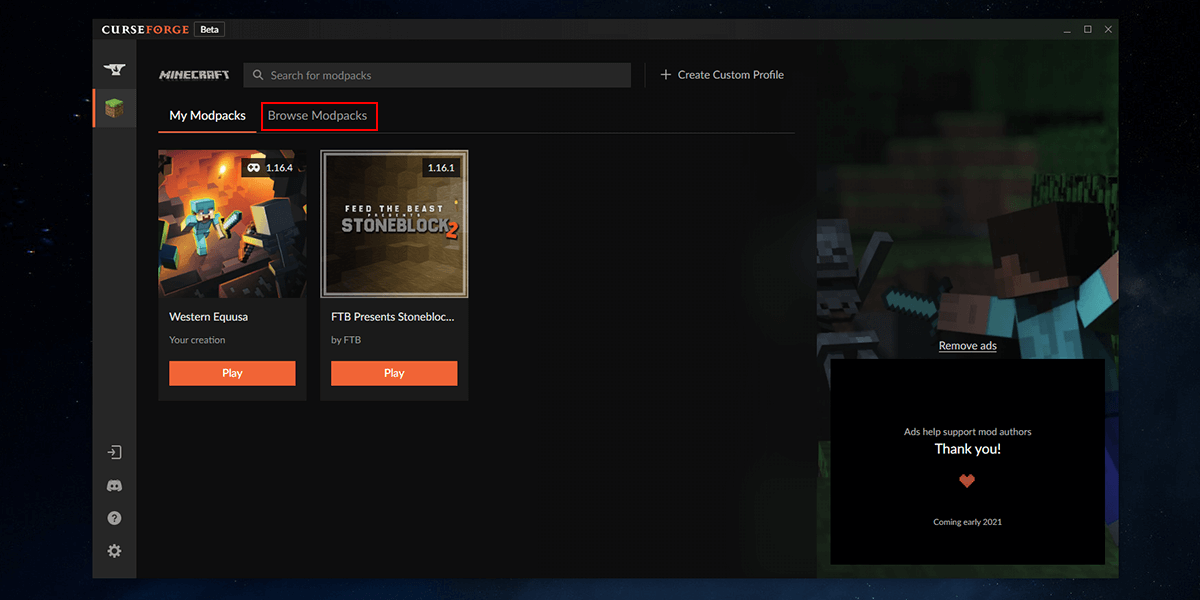
The modpack’s description and user reviews on CurseForge can help you make the best choice.
2. Select a Server Hosting Provider
Pick a reliable Minecraft server hosting provider that supports modpacks. Providers like Apex Hosting or BisectHosting offer easy setups for modded servers. Ensure the provider supports your modpack and provides adequate resources for smooth performance.
3. Install the Modpack
Once you have your server, you must install the modpack. Most hosting providers have a control panel where you can select and install modpacks directly.

Alternatively, you can download the modpack from CurseForge and upload it to your server’s mods folder.
4. Configure Server Settings
To suit your preferences, you can typically adjust settings such as difficulty, game mode, and player slots through the server’s control panel or configuration files.

5. Open Server Ports
Ensure your server ports are open for network access so your friends can join.Using DDoS protected hosting ensures your server stays secure and online. Most hosting services handle this automatically but double-check your server settings to confirm that the necessary ports are open.
For instance, if you’re setting up a server for “RLCraft,” a popular modpack known for its difficulty, make sure your server can handle the increased load and that you’ve configured it to accommodate the mod’s complex mechanics.
Connecting to Your Server
To connect to your CurseForge modpack server, follow these steps:
1. Install the Modpack
Ensure everyone who wants to join your server has the same modpack installed on their Minecraft client.

Download the modpack from CurseForge or use a modpack launcher like the Twitch app. This ensures all players have the same mods and version, preventing compatibility issues.
2. Configure the Minecraft Client
Open Minecraft and navigate to the “Multiplayer” menu. Click “Add Server” and enter your server’s IP address and port number. For example, if your server’s IP is 123.456.78.90 and the port is 25565, input these details to set up the connection.
3. Join and Play
Once your server is added, select it from the list and click “Join Server.” If everything is set up correctly, you and your friends should be able to connect and start playing together.
For example, if you’re running a modpack like “Enigmatica 2,” ensure everyone has the latest version to avoid mismatches. This setup allows for a seamless multiplayer experience where all players enjoy the same features and challenges.
Additional Tips – How to Play Multiplayer on CurseForge
To enhance your CurseForge modpack server experience, consider these additional tips:
Use Voice Communication
For better teamwork and coordination, use voice communication tools like Discord.
This helps with real-time strategy discussions and makes gameplay more enjoyable. It’s beneficial for coordinating complex tasks or adventures within the modpack.
Create a Shared World Save
To preserve your progress and ensure everyone can access the latest game state, create a shared world save regularly back up your world files to a cloud service or external storage. This way, you can recover your game if something goes wrong.
Troubleshooting Tips
If you encounter Lag, disconnections, or crashes, check your server’s resource usage and ensure it meets the modpack’s requirements. Adjusting server settings or upgrading your hosting plan can often reduce Lag.
Modpacks like these require heavy RAM. Don’t slow down your PC—host it on a dedicated GigaNodes India VPS starting at just ₹1800.
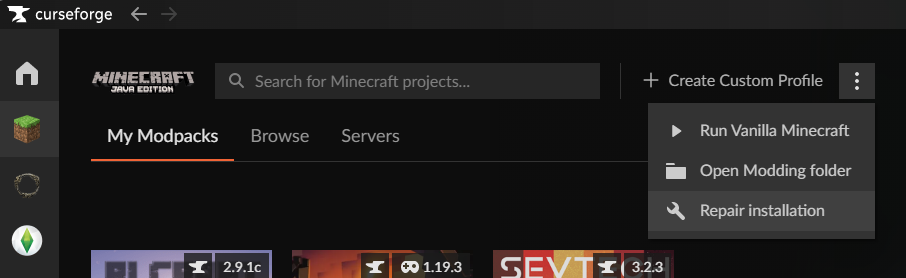
Verify that the server’s IP and port are configured for disconnections. Crashes might require updating mods or checking compatibility issues.
Following these tips ensures you and your friends a smoother, more enjoyable modded Minecraft experience.
Key Takeaways
Setting up a CurseForge modpack server involves several key steps. Start by choosing a modpack from CurseForge that suits your gameplay style, and then select a reliable server hosting provider. Install the modpack on the server, configure the settings to fit your preferences, and open the necessary ports to enable network access.
Once the server is set up, ensure all players install the same modpack on their devices and configure their Minecraft clients with the server’s IP address and port. This ensures everyone can connect and start playing together.
Exploring different modpacks and server configurations can create unique and enjoyable gameplay experiences. Don’t forget to use voice communication for better coordination and create a shared world save to protect your progress. Effective communication and cooperation are crucial for a smooth and fun multiplayer experience.
FAQs
How do I share my CurseForge modpack with friends?
To share your CurseForge modpack, upload it to CurseForge’s platform and ensure it’s set to public or shareable. Provide your friends with the modpack’s download link. They can then use the CurseForge app to search for and install the modpack. Ensure that all required mods and versions are included for compatibility.
Can you play multiplayer with CurseForge?
Yes, you can play multiplayer with CurseForge modpacks. After installing the modpack through the CurseForge app, set up a multiplayer server compatible with the modpack’s version and mods. Share the server details with your friends so they can join and play together using the same modpack.
How do you put Modpacks together in CurseForge?
To put modpacks together in CurseForge, use the CurseForge app to create a new modpack profile. Add desired mods by browsing the CurseForge library or uploading custom ones. Configure mod settings, dependencies, and versions to ensure compatibility. Save and test your modpack to ensure it functions correctly before sharing or publishing it.
Conclusion
Playing CurseForge modpacks with friends enhances your Minecraft experience. Install the CurseForge app, choose a modpack, and set up a multiplayer server. To ensure a smooth and enjoyable gaming session, use GigaNodes hosting services at affordable prices. Enjoy reliable performance and support, making playing with friends easier without technical hassles.